Documentation
ShowMyAura Documentation
Everything you need to know about ShowMyAura — from installation to advanced customization. Browse our guides, shortcode reference, and troubleshooting tips.
01
Getting Started
Install ShowMyAura and create your first gallery in minutes. Follow these simple steps.
Install & Activate
Install ShowMyAura Free from the WordPress plugin directory, or upload the Pro version. Activate the plugin.
Detailed install guide →Create a Gallery
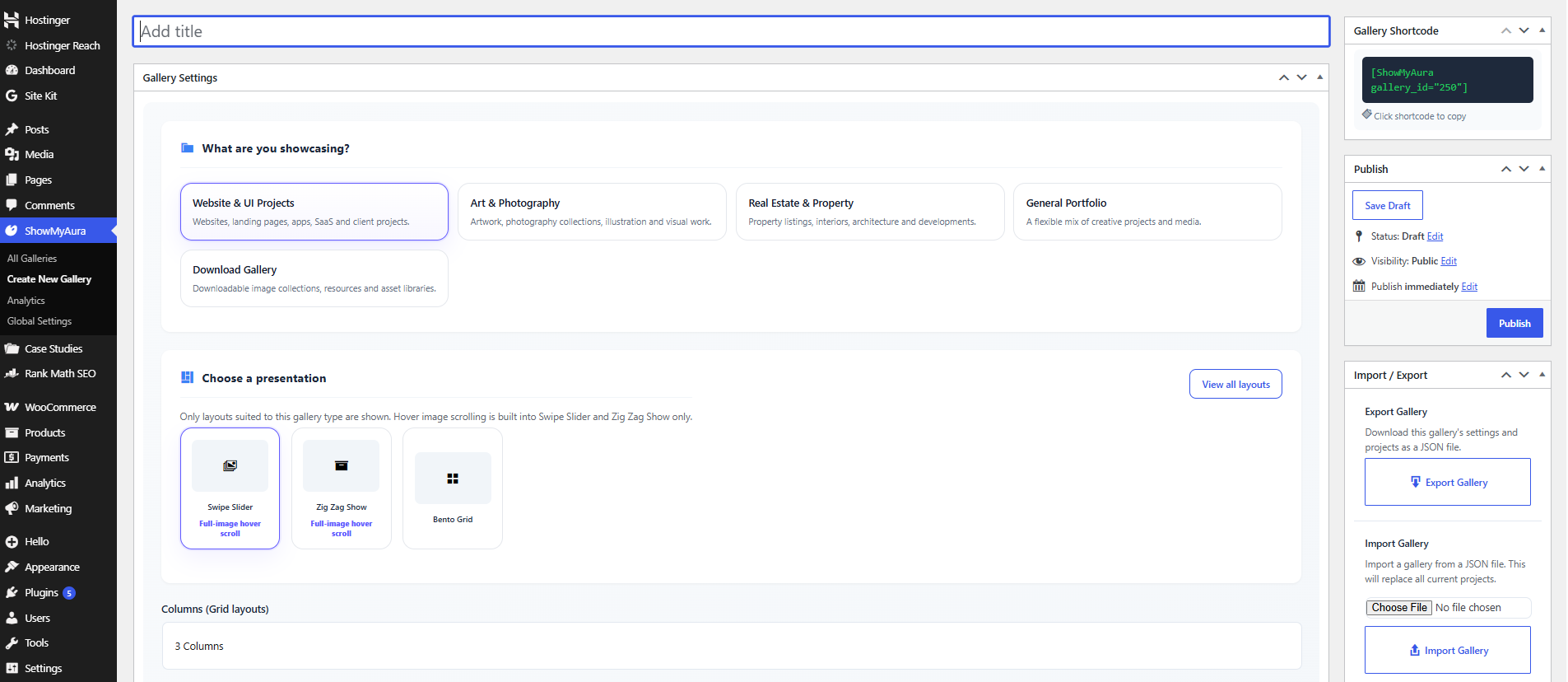
Go to ShowMyAura → Galleries in your WordPress admin. Click “Add New” and give your gallery a name.
Add Projects
Upload images from your media library, add titles, descriptions, and categories. Arrange them as you like.
Publish
Copy the shortcode (e.g., No projects in this gallery.
02
Shortcode Reference
Use these shortcodes to display your galleries anywhere on your site.
Basic Shortcode
No projects in this gallery.
Replace 123 with your actual gallery ID. You can find the ID in the gallery list in your WordPress admin.
Optional Parameters
- layout — Override the gallery’s default layout. Example:
No projects in this gallery.
- columns — Set the number of columns (for grid layouts). Example:
No projects in this gallery.
- limit — Limit the number of projects displayed. Example:
No projects in this gallery.
- order — Sort order:
ASCorDESC. Example:No projects in this gallery.
Shortcode in Block Editor
In the WordPress block editor (Gutenberg), add a Shortcode block and paste your shortcode. In the Classic Editor, just paste it directly into the content area.
03
Layout Library
ShowMyAura comes with a variety of layouts. Here’s a quick reference for each one.
Modern Grid
Symmetrical grid with curtain hover effect. Pro.
Smart Masonry
Natural vertical flow, preserves proportions. Free.
Spotlight Grid
Featured project with larger preview. Free.
Swipe Slider
Horizontal slider with smooth transitions. Pro.
Zig Zag
Alternating editorial storytelling layout. Pro.
Wall of Frames
Gallery‑style framed cards. Pro.
Fanned Deck
Layered, fan‑out card deck. Pro.
3D Carousel
Rotating 3D carousel. Pro.
Interactive 3D Carousel
Drag‑to‑rotate 3D carousel. Pro.
Outlined Cards
Cards with subtle outlines. Pro.
Download Gallery
Asset library with download buttons. Pro.
Tourist Attraction
Immersive travel showcase. Pro.
Property Showcase
Real estate and property gallery. Pro.
Note Free layouts are included in the Free version. Pro layouts require ShowMyAura Ultra Pro. Compare Free vs Pro →
04
Troubleshooting Tips
Common issues and how to resolve them.
Gallery not displaying
- Check the shortcode: Ensure the
No projects in this gallery.
- Check for conflicts: Temporarily disable other plugins to test if there’s a conflict.
- Clear cache: Clear your WordPress cache and browser cache.
- Check PHP memory: Increase your WordPress memory limit if you have many projects.
Layout not appearing as expected
- Ensure the layout is available in your version (Free vs Pro).
- Check your gallery settings — you may have overridden the layout.
- Verify that your projects have the correct fields filled (e.g., categories for filtered layouts).
Lightbox not working
- Check that JavaScript is not disabled or blocked.
- Look for console errors in your browser’s developer tools.
- Ensure the lightbox setting is enabled in the gallery settings.
Need more help?
If you’re still stuck, please contact our support team with details about your issue, and we’ll help you out.
05
Frequently Asked Questions
- Yes. ShowMyAura is built to work with any properly coded WordPress theme. It uses standard WordPress hooks and shortcodes.
- Yes. You can use the shortcode in any page builder that supports shortcodes, including Elementor, Beaver Builder, and others.
- Visit our Contact page or email support@devgurux.com. Pro users get priority support.
- Yes. You can use ShowMyAura on client sites. A single license allows you to use the plugin on one site. For multiple client sites, you’ll need a multi‑site license or separate purchases.
- You’ll receive update notifications in your WordPress admin. Simply click “Update” when a new version is available. Your license key will be validated automatically.
- The changelog is available on the Changelog page and in the readme.txt file included with the plugin.
Still have questions?
Our support team is ready to help. Contact us and we’ll get back to you promptly.
We respond within 24 hours